
Icon Themes & Widget - ThemeAI
Customize your Windows desktop with stunning themes, wallpapers, icons, cursors, and widgets. Stay organized and create a unique workspace with ThemeAI.

Welcome to Icon Themes & Widget – ThemeAI
Your desktop is where you work, study, create, and spend a large part of your day. With Icon Themes & Widget – ThemeAI, you can easily transform a plain Windows desktop into a personalized workspace that looks great and helps you stay organized.
Getting started is simple. Browse through a collection of beautiful wallpapers and desktop themes, then apply your favorite style with just a few clicks. You can also replace standard Windows icons with custom icon packs to create a cleaner and more consistent look.
Want to make your desktop feel more interactive? Explore animated cursor effects and modern cursor styles that add personality to your workspace. Even after closing the app, cursor effects continue running so your desktop keeps its unique appearance.
ThemeAI also includes useful desktop widgets that help you stay productive. Add a calendar to keep track of important dates, use countdown widgets for upcoming events, and create notes for reminders, tasks, or quick ideas. Everything stays visible on your desktop so important information is always within reach.
Whether you enjoy aesthetic desktop setups, need a more organized workspace, or simply want your computer to feel more personal, ThemeAI gives you all the tools you need in one easy-to-use application.
Customize your desktop, stay organized, and make your Windows experience truly your own with ThemeAI.
How to Use Icon Themes & Widget – ThemeAI
Step 1:- Launch ThemeAI
Open Icon Themes & Widget – ThemeAI from your Windows desktop or Start Menu.
On the welcome screen, click Personalize Widgets to enter the main customization dashboard.
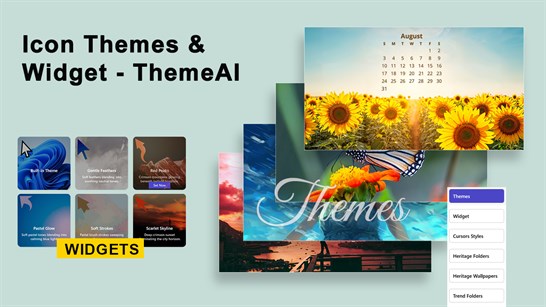
Step 2:- Explore the Main Dashboard
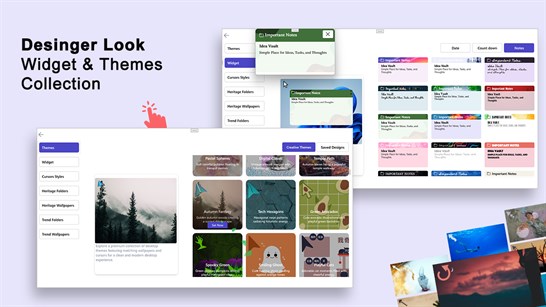
After opening the dashboard, you’ll see customization categories on the left side:
• Themes
• Widget
• Cursor Styles
• Heritage Folders
• Heritage Wallpapers
• Trend Folders
• Trend Wallpapers
Select any category to browse available designs and customization options.
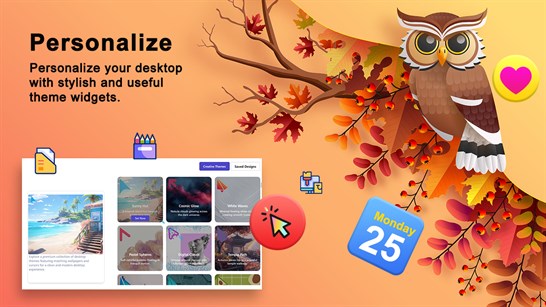
Step 3:- Apply Desktop Themes
Click Themes from the left menu.
- Browse the available theme collection.
- Click any theme preview to view details.
- Select your favorite design.
- Apply the theme to instantly update your desktop appearance.
Themes help create a coordinated look with matching wallpapers and visual elements.
Step 4:- Add Desktop Widgets
Click Widget from the menu.
Choose from:
Date Widget
Display the current date with stylish calendar designs.
Countdown Widget
Create countdown timers for birthdays, holidays, events, and deadlines.
Notes Widget
Add notes, reminders, to-do lists, and important information directly to your desktop.
Select a widget design and apply it to your desktop.
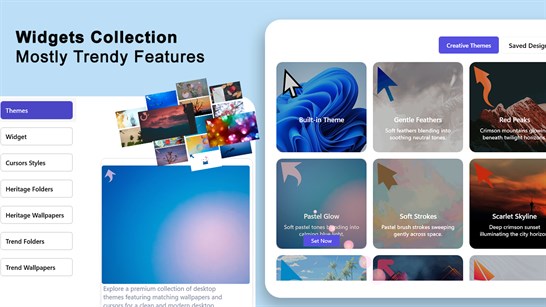
Step 5:- Customize Cursor Styles
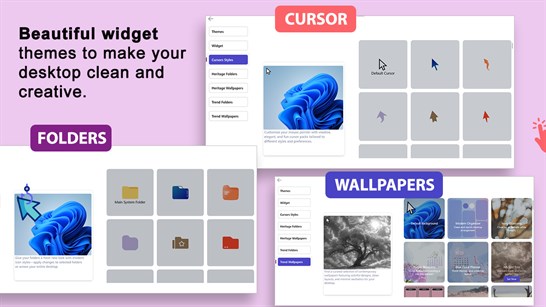
Click Cursor Styles.
- Browse the available cursor collections.
- Select a cursor style you like.
- Apply the cursor to personalize your mouse pointer.
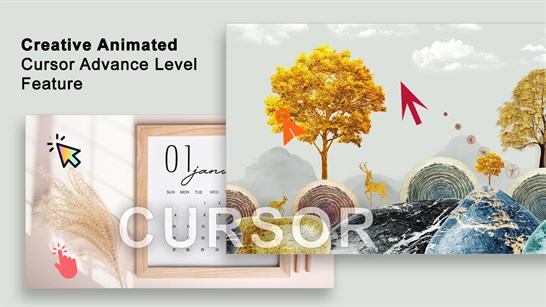
ThemeAI includes modern and creative cursor designs that make your desktop more interactive.
Step 6:- Change Folder Icons
Open Heritage Folders or Trend Folders.
- Browse available folder icon packs.
- Select a folder style.
- Apply it to customize your folder appearance.
Custom folder icons help create a cleaner and more organized desktop.
Step 7:- Set Wallpapers
Choose either Heritage Wallpapers or Trend Wallpapers.
- Browse the wallpaper gallery.
- Click a wallpaper preview.
- Apply the wallpaper instantly.
Mix wallpapers with themes, widgets, and folder icons for a complete desktop makeover.
Step 8: Create Your Perfect Desktop
Combine different customization options to build your ideal workspace:
• Apply a theme
• Set a wallpaper
• Add widgets
• Customize cursors
• Change folder icons
Experiment with different combinations until your desktop reflects your personal style.
Tips
• Use calendar and notes widgets to stay organized.
• Match wallpapers and folder icons for a consistent look.
• Try different cursor styles to personalize your desktop experience.
• Regularly explore new themes and wallpapers for a fresh appearance.
Enjoy transforming your Windows desktop with Icon Themes & Widget – ThemeAI.
My Drafts
The My Drafts section helps you save and manage your custom desktop creations in one place.
How to Use My Drafts
Open Icon Themes & Widget – ThemeAI.
Create and customize your desktop using wallpapers, cursor styles, widgets, and folder icons.
Save your personalized setup as a draft.
Open My Drafts from the app menu to view your saved designs.
What You Can Do
• View all saved custom themes and desktop designs.
• Continue editing previously saved drafts.
• Build unique theme combinations using different wallpapers and cursor sets.
• Organize your favorite desktop setups for future use.
• Quickly switch between saved designs without starting from scratch.
When No Drafts Are Available
If the page displays:
“Custom themes are empty right now—build your own with wallpapers and cursor sets.”
it means no custom themes have been saved yet.
To create your first draft:
Go to Themes, Wallpapers, or Cursor Styles.
Select the designs you want to use.
Create your custom desktop setup.
Save the design.
Return to My Drafts to access and manage your saved themes.
My Drafts makes it easy to keep your favorite desktop designs organized and ready to use whenever you want a fresh look.