WallArts - AI Wallpapers
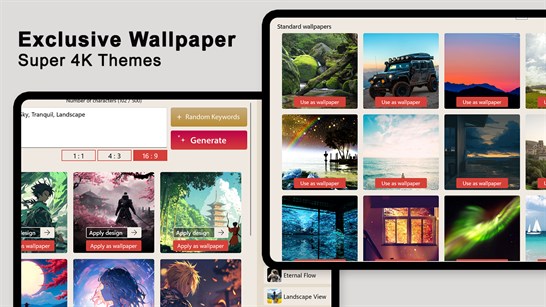
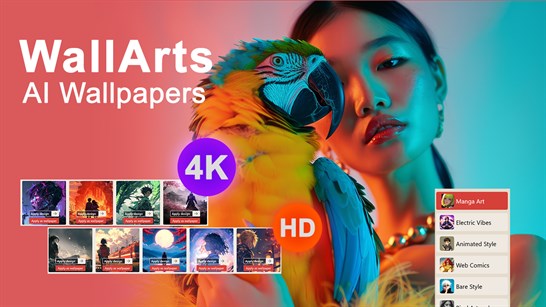
WallArts – AI Wallpapers is a modern wallpaper creator and collection app that lets you design and discover stunning desktop backgrounds in seconds.

Lorem ipsum dolor sit amet, consectetur adipiscing elit. Ut elit tellus, luctus nec ullamcorper mattis, pulvinar dapibus leo.
WallArts – AI Wallpapers | Tutorial Guide
Welcome to WallArts – AI Wallpapers, the smart desktop wallpaper app that helps you create and discover beautiful backgrounds for your Windows PC. Whether you want unique AI-generated artwork or ready-to-use HD wallpapers, WallArts makes desktop customization simple and enjoyable.
Getting Started
After launching the app, you’ll find two main ways to personalize your desktop:
1. Create AI Wallpapers
Use the built-in AI Wallpaper Generator to design custom wallpapers in seconds.
How to create an AI wallpaper:
Open the AI Generator section.
Enter a description of the wallpaper you want.
Example: A futuristic city at sunset
Example: Anime-style mountain landscape
Select your preferred style.
Choose an aspect ratio such as:
1:1
4:3
16:9
Click Generate.
Wait a few seconds while the AI creates your wallpaper.
You can also use random keywords for inspiration if you’re not sure what to create.
Explore AI Styles
WallArts includes multiple creative styles to help you generate artwork that matches your preferences.
Popular styles include:
Anime
Pixel Art
Electric Vibes
Web Comics
Abstract Art
Fantasy Themes
Modern Digital Art
Simply select a style before generating your wallpaper to achieve different visual effects.
Browse HD Wallpapers
If you prefer ready-made backgrounds, visit the Wallpaper Collection section.
Categories may include:
Nature
Landscapes
Scenic Views
Abstract Designs
Artistic Wallpapers
Minimalist Backgrounds
Browse the collection and find wallpapers that suit your desktop setup.
Preview and Apply Wallpapers
Before setting a wallpaper, you can preview it directly inside the app.
To apply a wallpaper:
Select a wallpaper.
Click Preview to view it.
Click Set as Wallpaper.
The wallpaper will instantly become your desktop background.
Tips for Best Results
Use detailed prompts for more unique AI-generated wallpapers.
Experiment with different styles and aspect ratios.
Explore both AI-generated and standard wallpaper collections.
Save your favorite designs for future use.
Why Use WallArts?
Create personalized AI wallpapers in seconds.
Access a large collection of HD desktop backgrounds.
Enjoy a simple and beginner-friendly interface.
Discover new artistic styles and creative ideas.
Customize your Windows desktop effortlessly.
WallArts – AI Wallpapers combines creativity and convenience, giving you everything you need to create a desktop experience that is unique, stylish, and inspiring.
AI Wallpaper Generator
The AI Wallpaper Generator allows you to create unique wallpapers by simply describing what you want to see. Choose a style, enter your idea, and let the AI generate a custom wallpaper in seconds.
How to Create an AI Wallpaper
Step 1: Enter Your Idea
At the top of the screen, type a description of the wallpaper you want in the text box.
Examples:
- Anime warrior standing in a futuristic city
- Peaceful mountain landscape at sunrise
- Neon cyberpunk street with glowing lights
- Fantasy castle above the clouds
Step 2: Use Random Keywords (Optional)
If you need inspiration, click Random Keywords. The app will automatically generate creative prompt ideas that you can use or modify.
Step 3: Select an Aspect Ratio
Choose the wallpaper size that best fits your screen:
- 1:1 – Square format
- 4:3 – Standard display format
- 16:9 – Widescreen monitors and laptops
Step 4: Choose an AI Style
Select a style from the right-side panel.
Available styles include:
- Manga Art
- Electric Vibes
- Animated Style
- Web Comics
- Bare Style
- Pixel Artworks
- Organic View
- Creative Pro
- Eternal Flow
- Landscape View
Each style produces a different artistic effect.
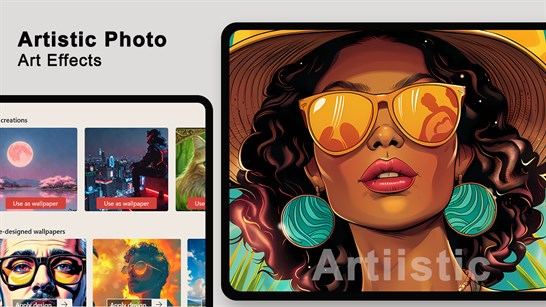
Step 5: Generate Wallpaper
Click the Generate button.
The AI will create a unique wallpaper based on your description and selected style.
Step 6: Preview the Result
After generation, review the wallpaper and decide whether it matches your idea.

Step 7: Apply the Wallpaper
Choose one of the available actions:
- Apply Design – Use the generated artwork within the app.
- Apply as Wallpaper – Instantly set the generated image as your Windows desktop wallpaper.
Tips for Better Results
- Use detailed descriptions for more accurate images.
- Include colors, scenery, mood, or artistic themes.
- Experiment with different AI styles.
- Try multiple generations to discover new creative variations.
The AI Wallpaper Generator makes it easy to create personalized desktop backgrounds that match your style and preferences.
Standard Wallpapers
The Standard Wallpapers section provides a collection of ready-to-use high-quality wallpapers. Browse through various categories and instantly apply your favorite wallpaper to your Windows desktop.
How to Use Standard Wallpapers
Step 1: Open the Standard Wallpapers Section
Navigate to the Standard Wallpapers page from the main menu.
You will see a gallery of wallpapers displayed in a grid layout.
Step 2: Browse Available Wallpapers
Scroll through the collection to explore different wallpaper styles, including:
Nature and Forests
Mountains and Landscapes
Beaches and Oceans
City Skylines
Abstract Designs
Space and Night Sky
Artistic and Scenic Views
New wallpapers may be added regularly to expand the collection.
Step 3: Preview a Wallpaper
Click on any wallpaper thumbnail to view it in a larger size before applying it.
This helps you check how the wallpaper will look on your desktop.
Step 4: Apply the Wallpaper
When you find a wallpaper you like:
Select the wallpaper.
Click Use as Wallpaper.
The wallpaper will be automatically applied as your Windows desktop background.
Premium Wallpapers
Some wallpapers may display a crown icon, indicating premium or featured content.
These wallpapers offer exclusive designs and enhanced visual quality.
Tips
Explore different wallpaper categories to find a style that matches your desktop setup.
Use high-resolution wallpapers for the best visual experience.
Change wallpapers regularly to keep your desktop fresh and personalized.
Combine Standard Wallpapers with AI-generated wallpapers for even more customization options.
Why Use Standard Wallpapers?
Instant access to professionally curated wallpapers.
No prompt writing or image generation required.
Quick one-click wallpaper application.
Wide variety of themes and visual styles.
Perfect for users who want beautiful wallpapers ready to use.
The Standard Wallpapers section makes it easy to find and apply stunning desktop backgrounds in just a few clicks.